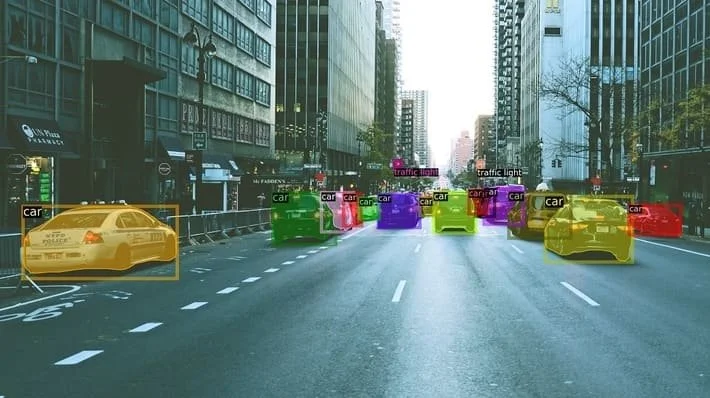
danaXa is an AI holding company that provides computer vision solutions and uses machine learning for human/object detection and tracking. On July 30, 2020, I was assigned to improve the user experience of dlabel, An annotation tool for video and image datasets to be used for deep learning.
User Experience Improvements
Introduction
User interface/User experience design is a crucial step during the application and website development process. A high-quality product leads to user satisfaction, which eventually increases the number of sales and users.
In the first section, I am going to review potential design bugs, which may lead to a bad user experience. Some flaws have been identified, and solutions have been offered afterward. In addition, some suggestions have been made in order to increase the usability of the product.
Zoom In/Out
Clicking on zoom in or zoom out buttons is not a friendly user experience. People prefer to use scroll up or scroll down in order to zoom in or zoom out on a picture or map. This feature has been implemented the wrong way on this website (scroll down → zoom in, scroll up → zoom out)
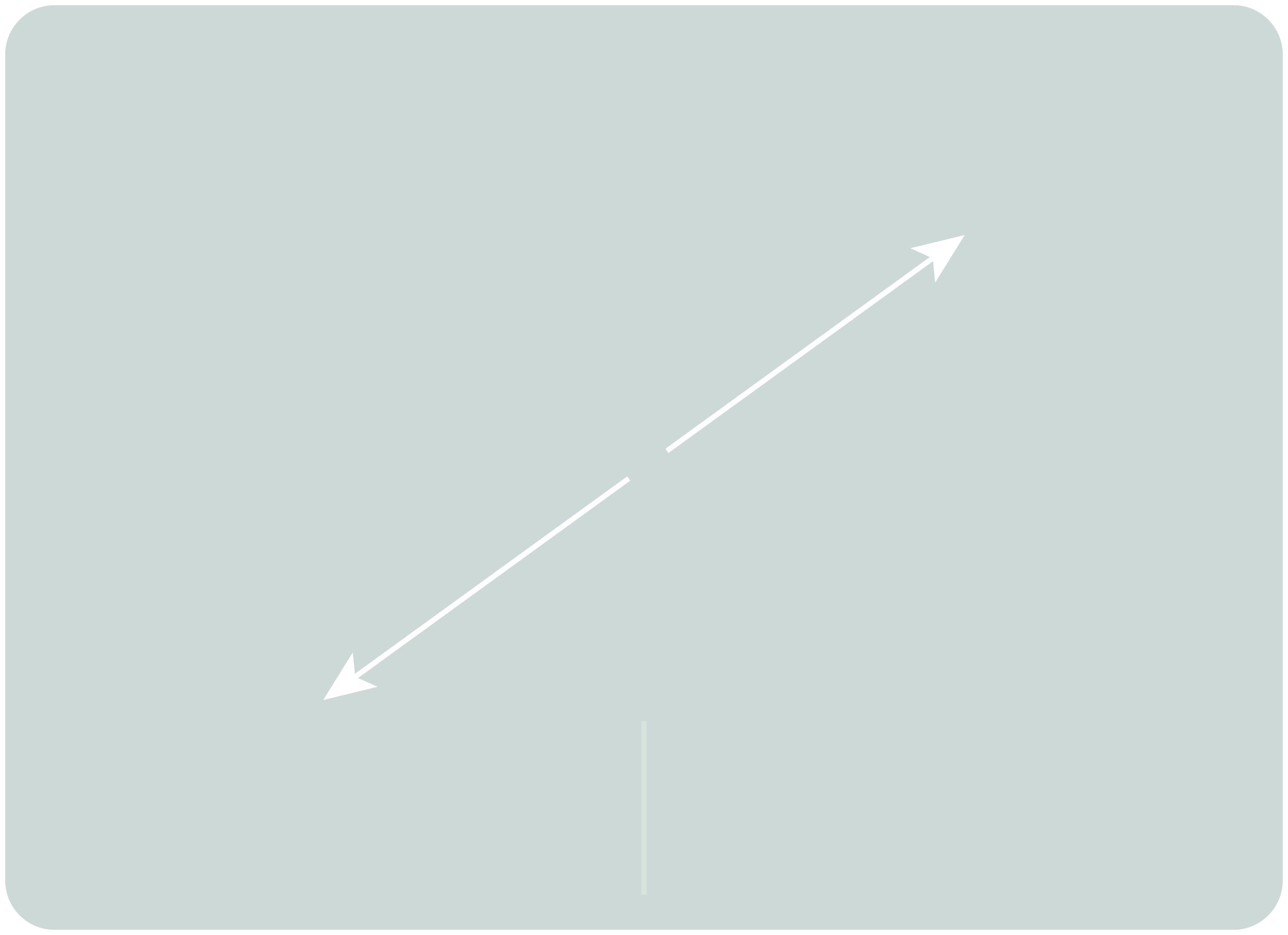
Pinch in using the touchpad to zoom in
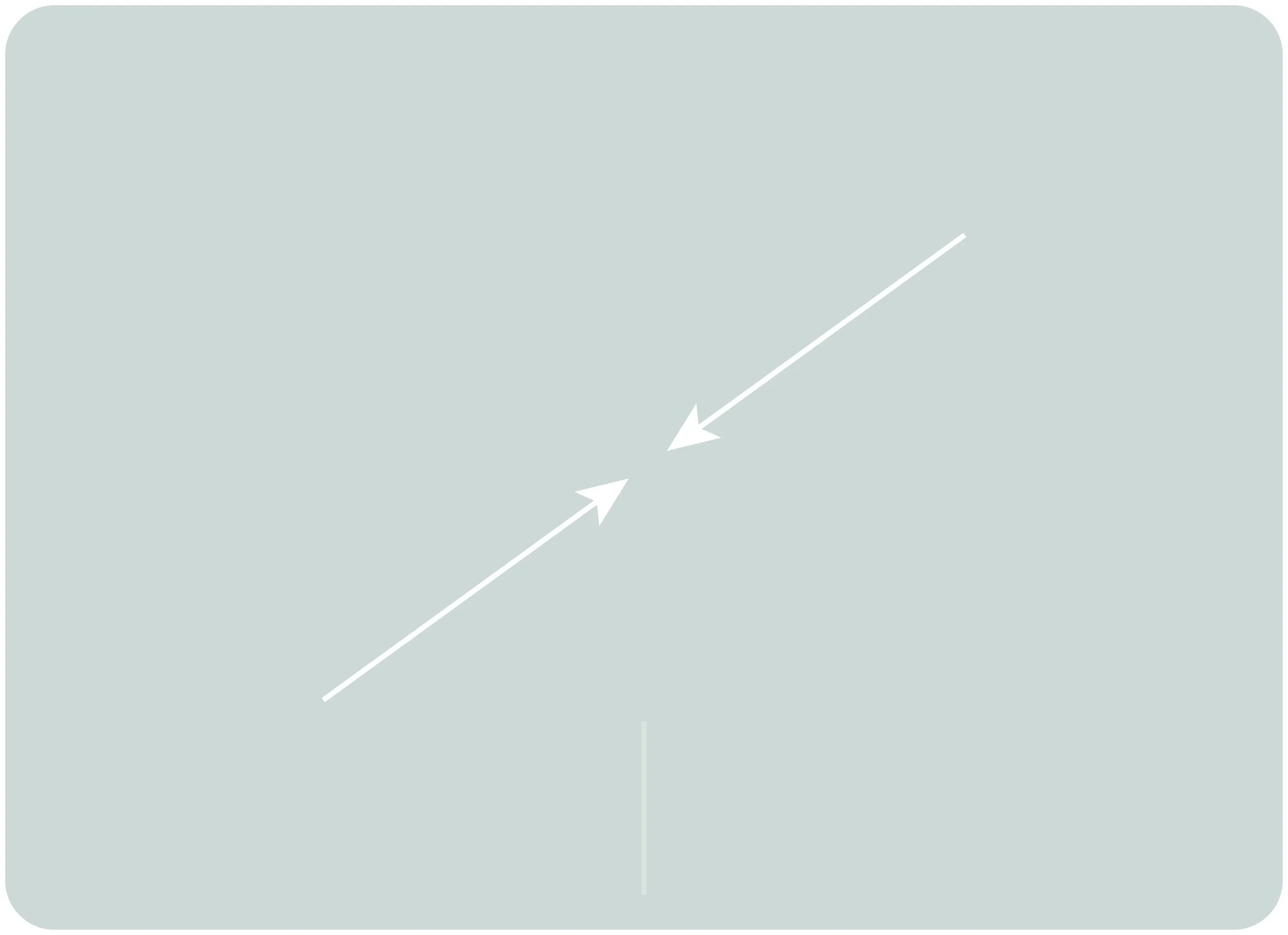
Stretch out using the touchpad to zoom out

The toolbar is not a very friendly user experience and most people prefer to use shortcuts and alternative ways
Error Messages
In the signup form, when you leave the email field blank or enter the email in an incorrect format, you will receive an error message which is not clear. Furthermore, when I decided to add a new item to the item groups, I filled all the fields properly and clicked on the create button. Then I received this error message, which is not clear and can’t tell the user explicitly what is the problem and what is the required actions in order to solve it. Error messages should be short, meaningful, and clear. In addition, we should avoid using technical terms in the error messages.
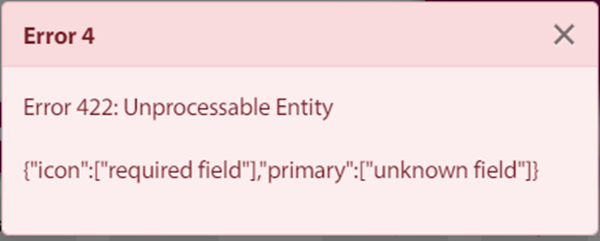
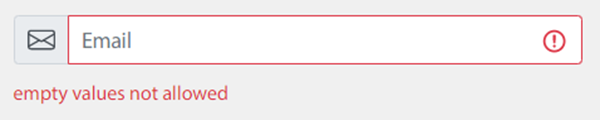

Image Enhancement
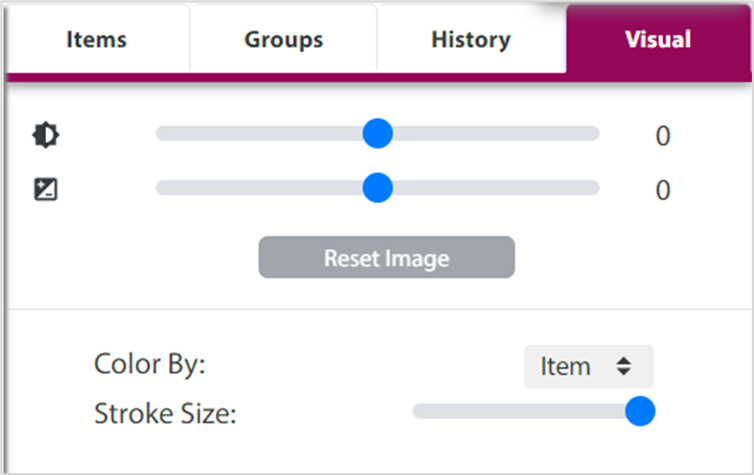
In the right panel, we have a visual tab to increase or decrease image contrast or brightness. Sometimes the picture might be noisy or needs sharpening to improve the accuracy of dLabel for object detection and labeling. We can enable the user to manually adjust the amount of sharpening or noise reduction using filters like high-pass, median, ….
Object Labeling
When you hover over a detected object, a big black label will appear which shows the category of that object. Sometimes this label blocks other identified elements in the picture, which creates a bad user experience.
Active Frame
You can browse images by clicking on them in the left panel or by clicking the next frame key from the bottom panel. However, when you choose the latter method, the image which is currently active and shown in the editor is not the same as the active image from the left panel. This may confuse the user since the active image is not the same as the selected one.
User guide
User guides play an essential role in helping the user realize how a particular system works. It enables the user to completely understand different features of the product and troubleshoot probable problems that he/she may encounter. However, in digital products using a written user manual is not common. For products like dlabel, we can give a quick tour to new users and show them different features of the product and what they can do with it. Descriptions should be short and accurate, and we need to use screenshots or motion graphics mostly.